Exporting Content
How to export quest recordings and translation data from LangQuest
Exporting Content
Export lets project members take completed or in-progress quest work out of LangQuest for review, distribution, archiving, or use in another workflow.
Who can export
Export availability depends on project membership and the type of content you are viewing.
In general:
- Project members can export content they have access to.
- Owners and admins may see additional dashboard export options.
- Cloud-only content may need to be downloaded first.
- Local-only content should be reviewed before sharing outside the app.
If you do not see an export option, check that you are signed in, have access to the project, and are viewing a quest or asset list where export is supported.
When to export
Export is useful when you need to:
- Share recorded audio with a consultant.
- Review translations outside the app.
- Archive a completed quest.
- Combine audio segments for listening.
- Move content into another translation or publishing workflow.
Export is not a replacement for sync. Keep syncing project work to the cloud if other team members need to collaborate inside LangQuest.
Prepare content before exporting
Before exporting:
- Review the asset order.
- Delete test recordings.
- Rename unclear assets.
- Confirm verse labels or quest structure are correct.
- Wait for sync to finish if the export should include cloud-backed team work.
Clean exports are easier for reviewers and project leaders to understand.
Export a quest
- Open the project in the app or website dashboard.
- Open the quest, chapter, pericope, or export dialog.
- Review the asset list.
- Choose the export option.
- Select the export format or destination available on your device.
- Wait for LangQuest to prepare the export.
- Share or save the exported file using your device's share sheet.
Large audio exports can take time. Keep the app open until the export finishes.
Export from the Website Dashboard
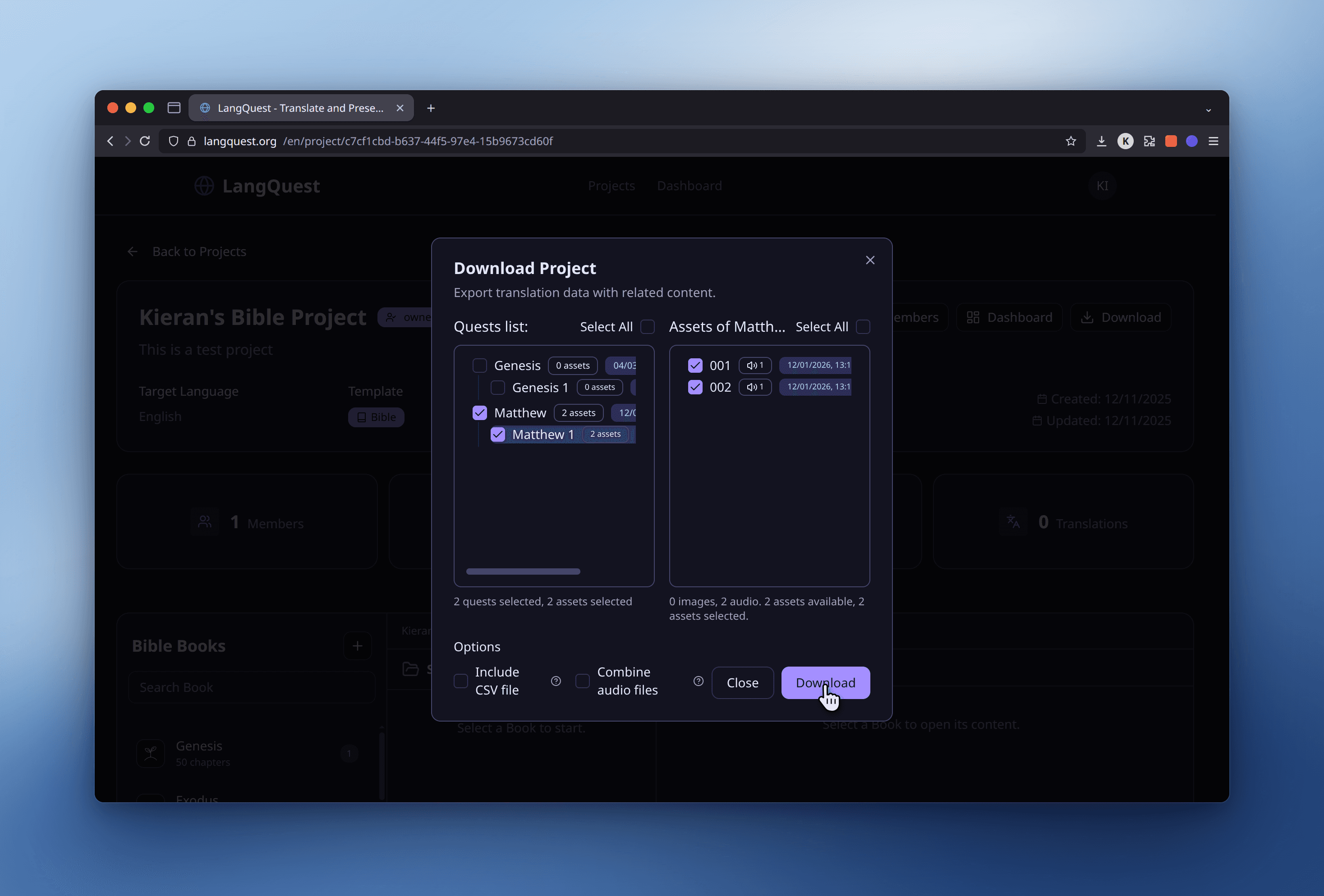
The website dashboard includes a project download/export dialog for larger data-management tasks.
From that dialog you can:
- Select specific quests.
- Select specific assets within a quest.
- See counts for selected quests and assets.
- Include a CSV file with the exported item list.
- Combine audio files into one file for each quest version.
- Watch progress while the ZIP is prepared.
- Review warnings if some files cannot be included.
The Include CSV file option creates a text file with exported item data, including quests and assets. The Combine audio files option is useful when you want one listening file for a Bible chapter, FIA pericope, or similar quest version.
The website export flow requires sign-in and access to the selected project.
Export audio for listening
Some views support combining recorded audio segments in order. This is helpful when you want to listen to a whole chapter, pericope, or story without opening each asset individually.
Before combining audio, make sure the asset order is correct.
Export for review
When sending content for review, include context:
- Project name.
- Quest or chapter name.
- Language.
- Translator or speaker.
- Whether the content is draft, reviewed, or final.
If you export outside LangQuest, the recipient may not see app-only context such as vote comments, project membership, or local sync status.
CSV and JSON Data Exports
Some dashboard views may offer spreadsheet or structured-data exports. These can include project, quest, asset, source content, translation, and vote-count fields.
Use CSV when reviewers need a spreadsheet. Use structured formats only when another system or data workflow needs them.
Troubleshooting export
If export fails:
- Confirm you are signed in.
- Confirm you have access to the project.
- Select at least one quest with assets.
- Wait for any active downloads or export preparation to finish.
- Check device storage.
- Try exporting fewer quests or assets.
- Restart the app or browser tab and try again.
If the exported file is missing recordings, verify that those recordings are not cloud-only and that they have downloaded to your device.
Related guides
- Offline, Sync & Storage - Download and sync content before exporting.
- Unstructured Projects - Keep flexible quest data organized.
- Data Management - Understand dashboard exports and data handling.
- Troubleshooting - Resolve storage, download, and sync problems.